Local, from the start
Included OCR recognizes Chinese, English, Japanese, and Korean. Local translation works offline after setup, without a per-translation service fee.
 Game Translation
FOR THE CONVERSATIONS BETWEEN PLAYS
A different language should not mean a missed conversation. Capture visible game chat, read the translation, and prepare a reply in one Windows workspace.
Windows desktop appLocal OCR and translation included. Optional external AI with your own API key.
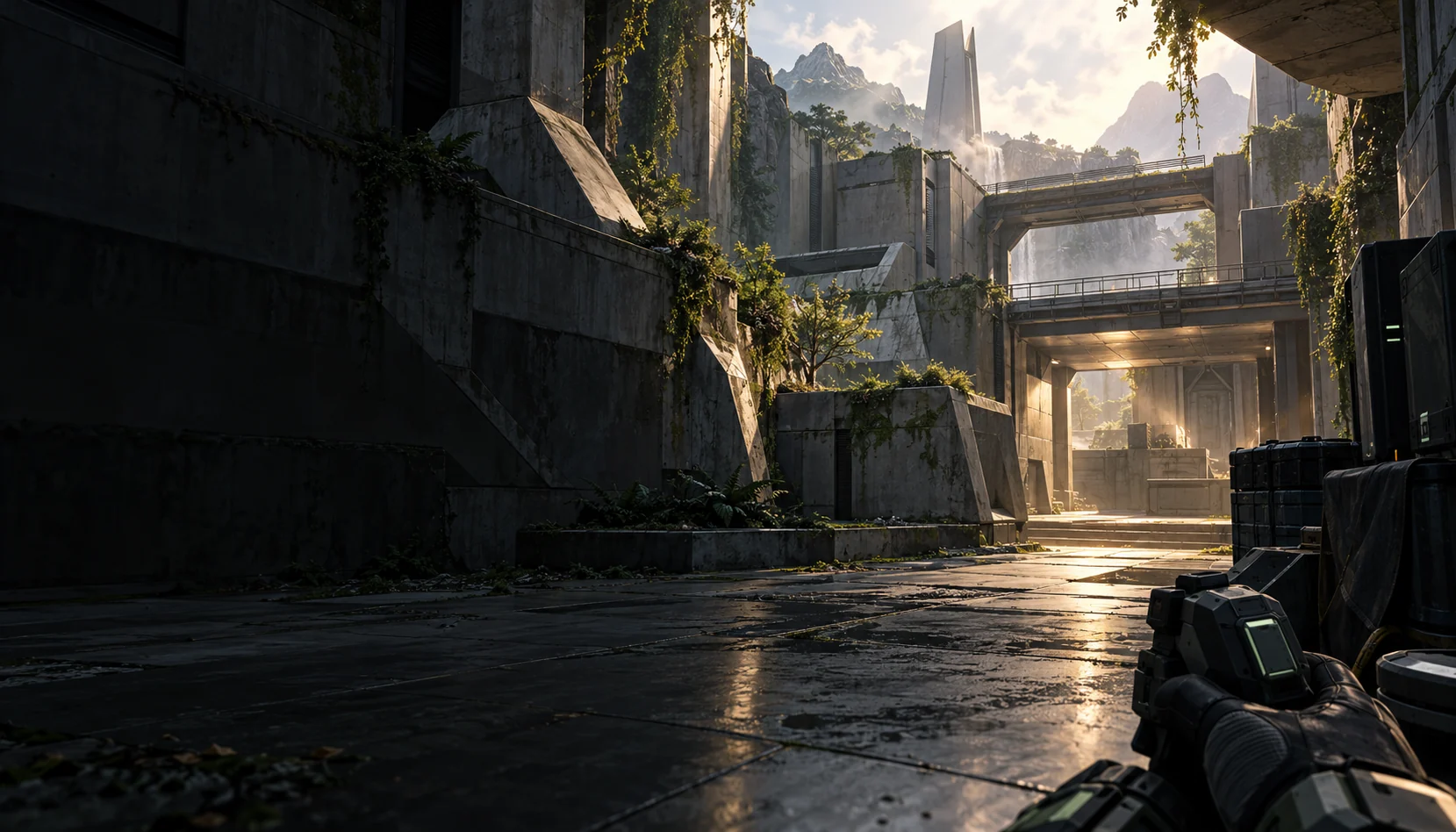
THE CONVERSATION DOES NOT WAIT
Take a screenshot. Upload it. Wait for a translation. Write your reply, then translate that too. In a tactical match, every extra switch can cost you the moment to coordinate.
Fewer tools to switch between. Use a preparation phase, respawn, or round break to catch up and respond. Processing time depends on your setup.
FOLLOW THE CONVERSATION
Try a short exchange. Capture the sample chat, compare the messages, then prepare a reply in your teammate’s language.
Game TranslationGAME CHAT · ILLUSTRATIONInteractive illustration with preset translations. This page does not capture your game or run OCR or AI.
Interactive illustration with preset translations. This page does not capture your game or run OCR or AI.
INSIDE THE APP
Read captured messages and prepare your reply in the same place. Set up the capture area once for each application, then reuse it.
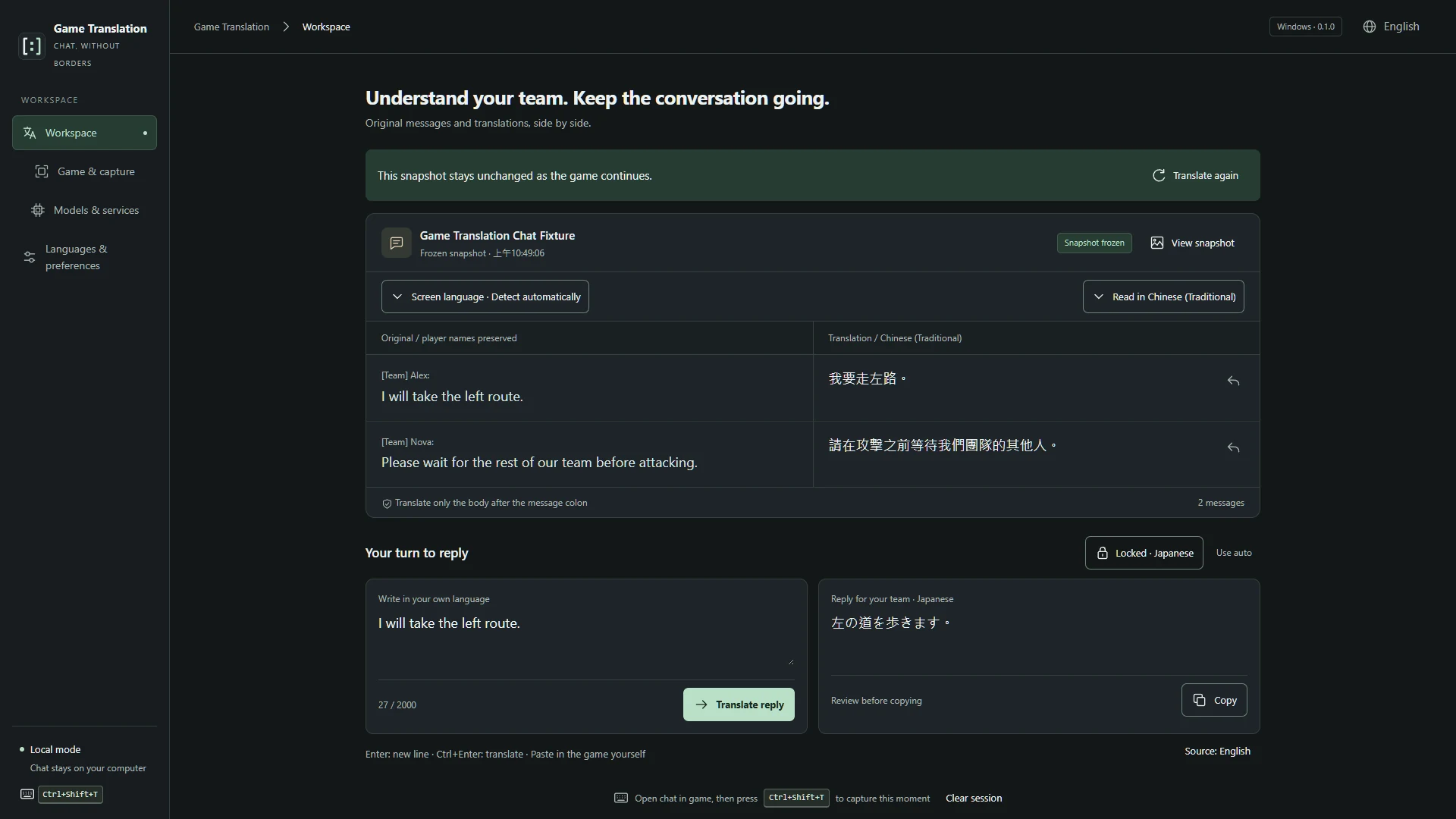 Enlarge screenshot
Keep the original text beside the translation, then review and copy your translated reply.
Enlarge screenshot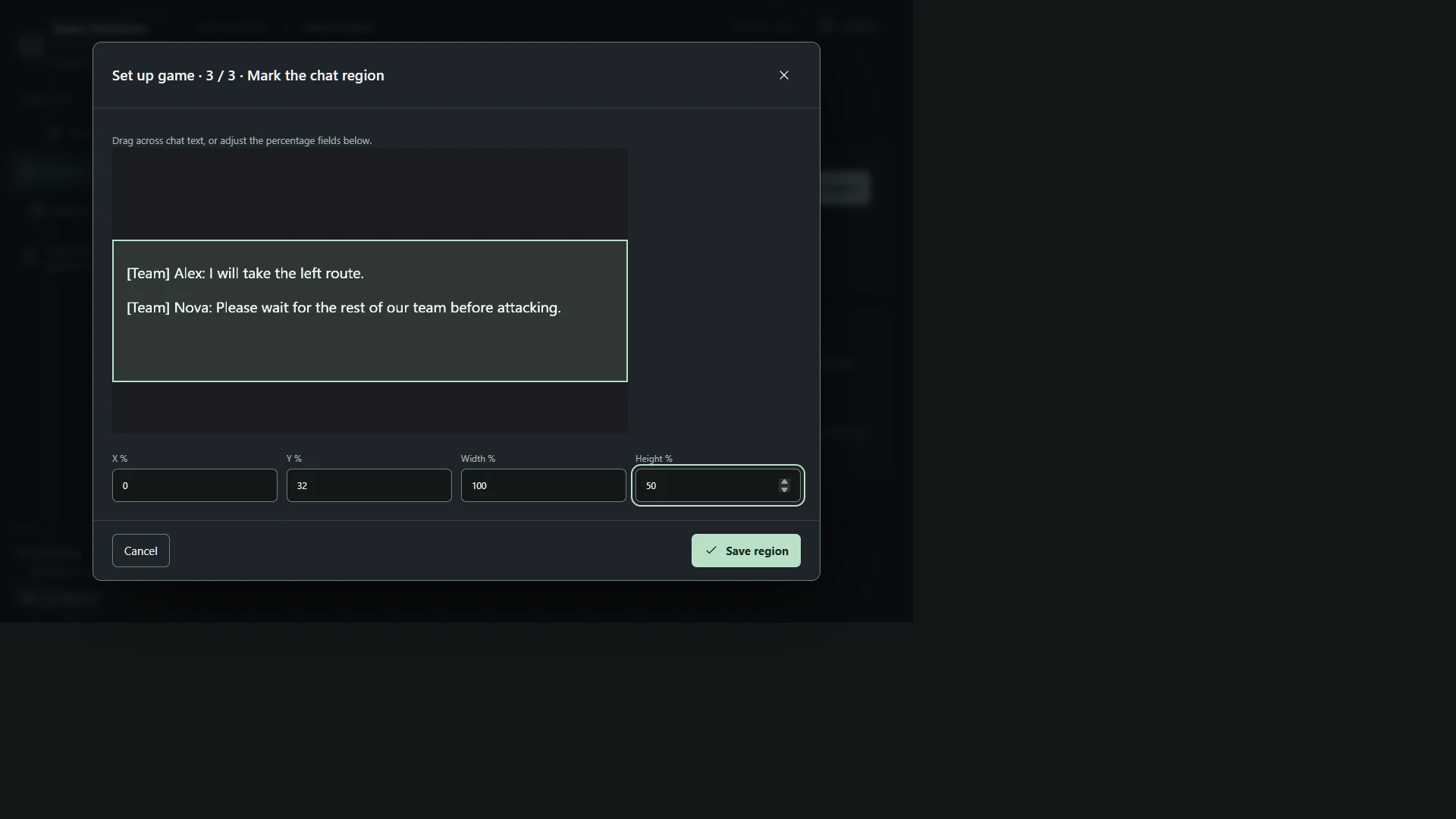 Enlarge screenshot
Choose an application and mark its chat region. The saved area is reused on later captures and after restarting.
Enlarge screenshotActual desktop app screenshots with chat samples created for this project. They do not demonstrate compatibility with a specific game.
BUILT AROUND YOUR CHAT
Included OCR recognizes Chinese, English, Japanese, and Korean. Local translation works offline after setup, without a per-translation service fee.
Save the chat area once. Open the chat yourself, keep the game in front, and capture the visible messages with your configured shortcut.
Player names stay with the original; only text after a recognized colon is translated. Write your reply, choose its target language, review the translation, and copy it back to the game.
Correct the screen language, skip languages you know, and clear saved captures. Use a compatible external AI service if you prefer; its charges and data policies apply.
FIND YOUR MOMENT
Check a route, agree on a role, or make sure everyone is ready before the next push.
Catch up on the messages you missed and prepare your next response when it is safe to switch focus.
Say thanks, talk through a play, or ask your team to queue again while the conversation is still open.
BEFORE YOU QUEUE
Game Translation is a Windows x64 desktop application. The complete package includes the local models and their runtime dependencies. On first launch, it checks for Microsoft Edge WebView2 Runtime and uses the bundled installer if it is missing. Visit Steam for current availability and system requirements.
Built-in OCR recognizes Traditional and Simplified Chinese, English, Japanese, and Korean. Translation languages depend on the selected model or service; OCR, translation, and interface language support are separate. You can choose a screen language manually if automatic recognition gets it wrong.
It captures visible text from a selected application. Results depend on the game, display mode, font, and chat layout. Select and test a readable chat region in your own setup. The illustrated scene and sample screenshots are not proof of compatibility with a particular game.
Local mode does not require an external AI subscription or API key, and processing stays on your computer. With an optional external service, the selected screenshot or extracted text and any reply you translate are sent to that provider; its fees and policies apply. Saved captures and completed translations stay on disk until you clear them.
No. It translates captured visible text and the replies you write. You review the translated reply, copy it, and paste it into the game yourself. It does not read hidden messages or replace voice chat and in-game pings. Allow time for capture, processing, and switching focus.
No. The walkthrough uses a fixed sample conversation and preset translations. It never accesses a game window or runs a translation model. The separate app screenshots show the desktop interface using project-created chat samples.
Read what your team means. Reply in your own words. Bring one less language barrier to your next match.
Check Steam for availability, pricing, and system requirements.